Project Structure
App_Resources
The App_Resources folder contains platform-specific resources of the application (icons, configuration files, native code, etc.). An application that supports both Android and iOS would therefore contain a subfolder for each platform (and a Linux subfolder when targeting Linux).
This page serves as a quick reference to understand how most settings in App_Resources affect the behavior and the look of a NativeScript app.
Android specific resources
On Android, many aspects of the default styling is controlled through various settings within the App_Resources folder.
Here we are showing the default look of a few elements (no custom styling applied) using the default values provided in App_Resources:
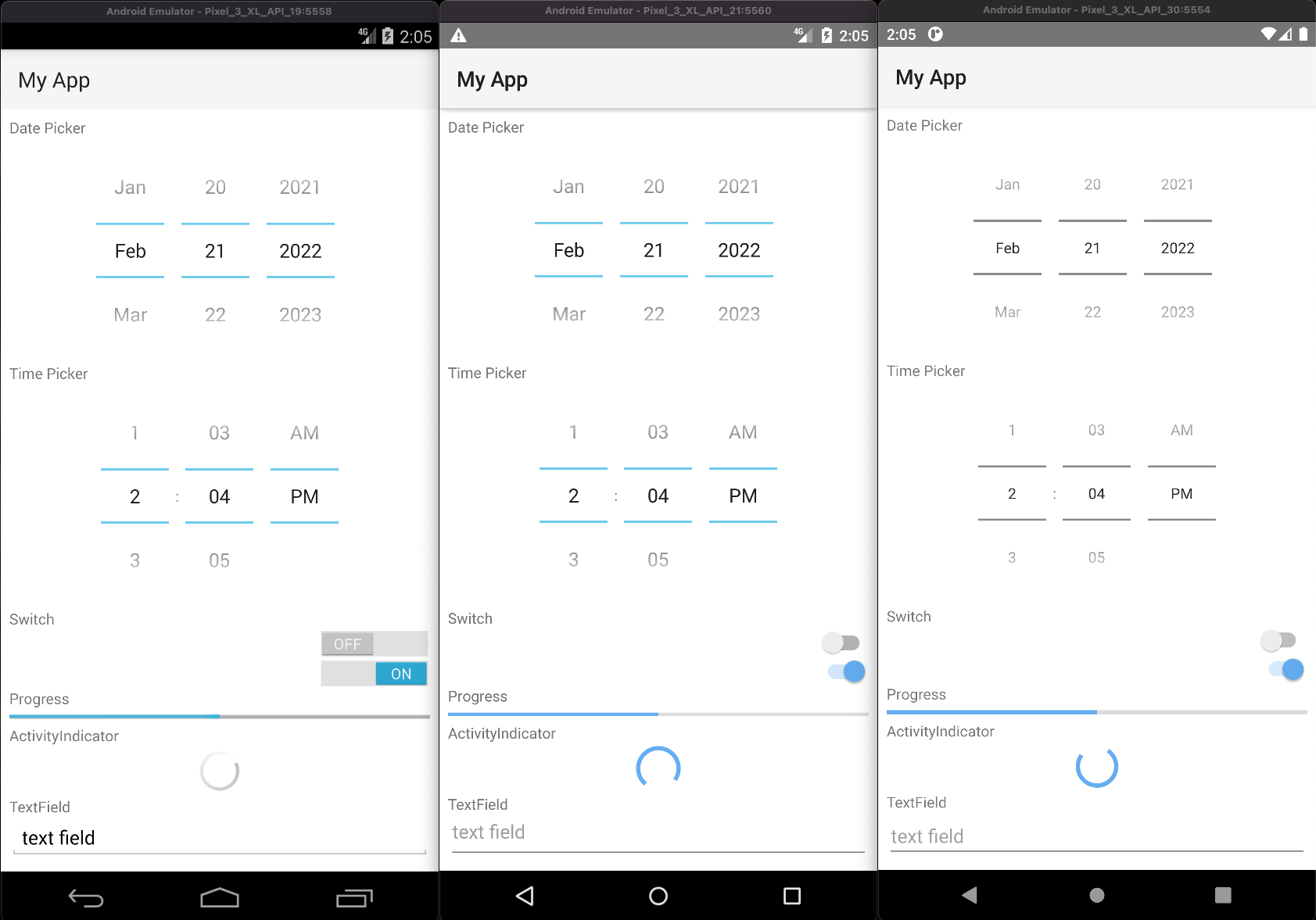
App_Resources/
├─ Android/
│  └─ src/main/res/
│     ├─ values/      # Default Values
│     ├─ values-v21/  # Values for API 21+
│     └─ values-v29/  # Values for API 29+
└─ ... more
Values can be overridden on specific API levels by making the changes in the corresponding directories.
Android app display name
App_Resources/Android/src/main/res/values/strings.xml
<?xml version="1.0" encoding="UTF-8" standalone="yes"?>
<resources>
  <string name="app_name">Your app name</string>
  <string name="title_activity_kimera">Your app name</string>
</resources>
Adding native code to an application
See Adding Java/Kotlin Code to an application
Setting the default color of the ActionBar
To change the default color fo the ActionBar, edit the ns_primary color inside App_Resources/Android/src/main/res/values/colors.xml:
<!-- The default color of the ActionBar -->
<color name="ns_primary">#65adf1</color>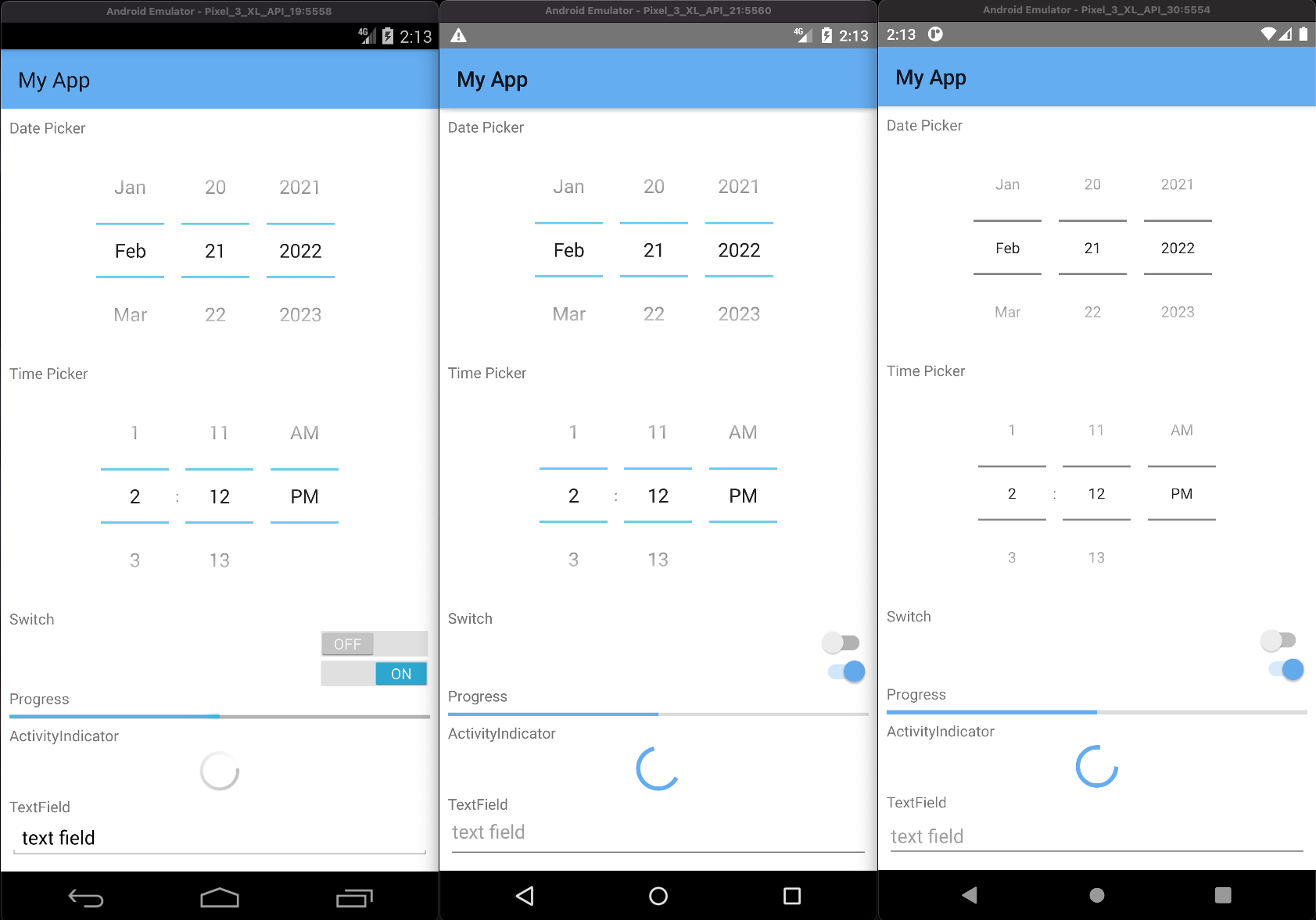
Setting the default color of the status bar
To change the default color of the status bar, edit the ns_primaryDark color inside App_Resources/Android/src/main/res/values/colors.xml:
Note
The color will be applied on API21+ since lower API levels do not support custom status bar colors*.
<!-- (API21+) The color of the status bar and contextual app bars; this is normally a dark version of colorPrimary. -->
<color name="ns_primaryDark">#65adf1</color>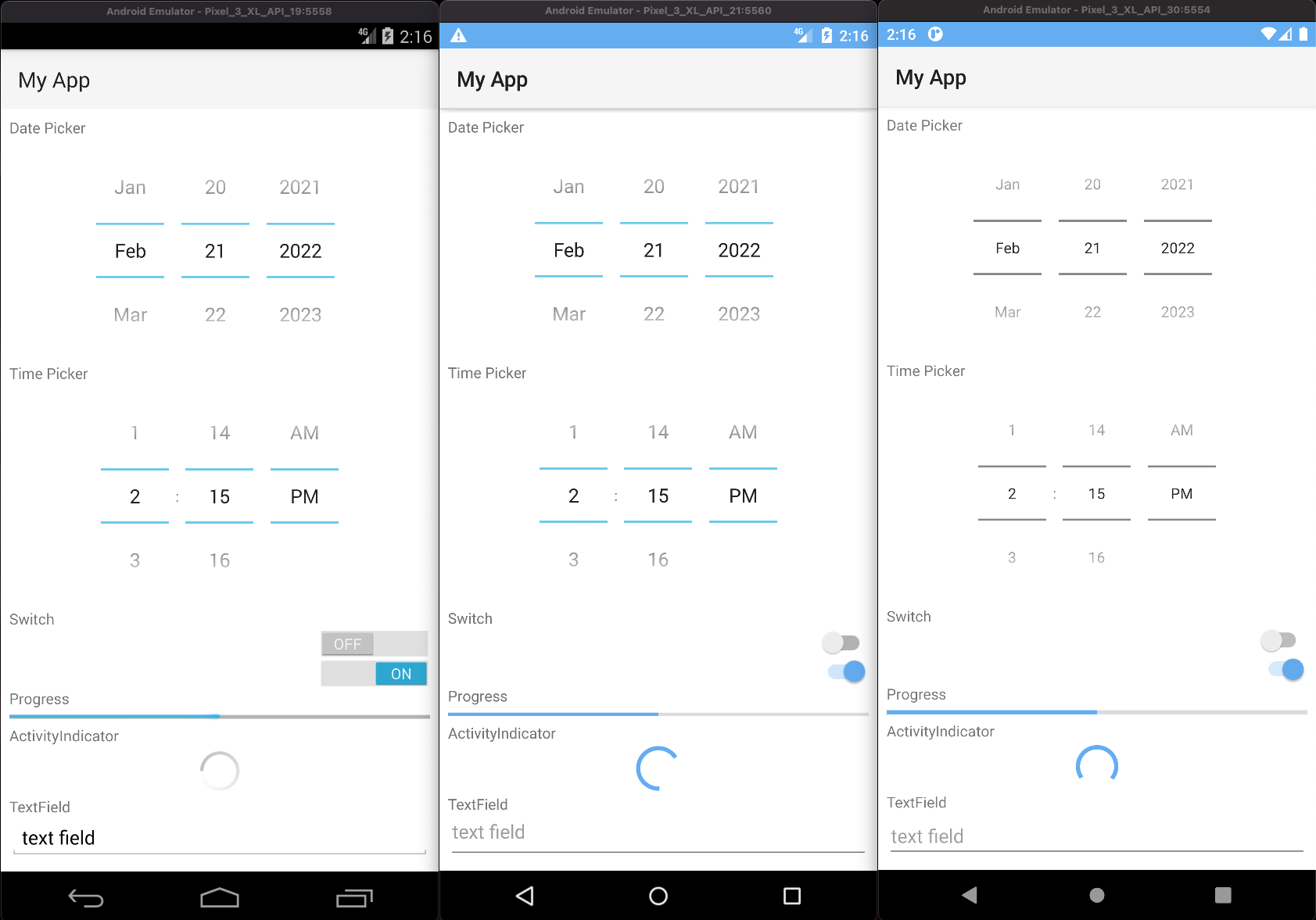
Setting the accent color
Various native elements have an accent color, which can be changed by setting the ns_accent color inside App_Resources/Android/src/main/res/values/colors.xml:
Note
The color will be applied on API21+ since lower API levels do not support custom accent colors.
<!-- The color of UI controls such as check boxes, radio buttons, and edit text boxes. -->
<color name="ns_accent">#059669</color>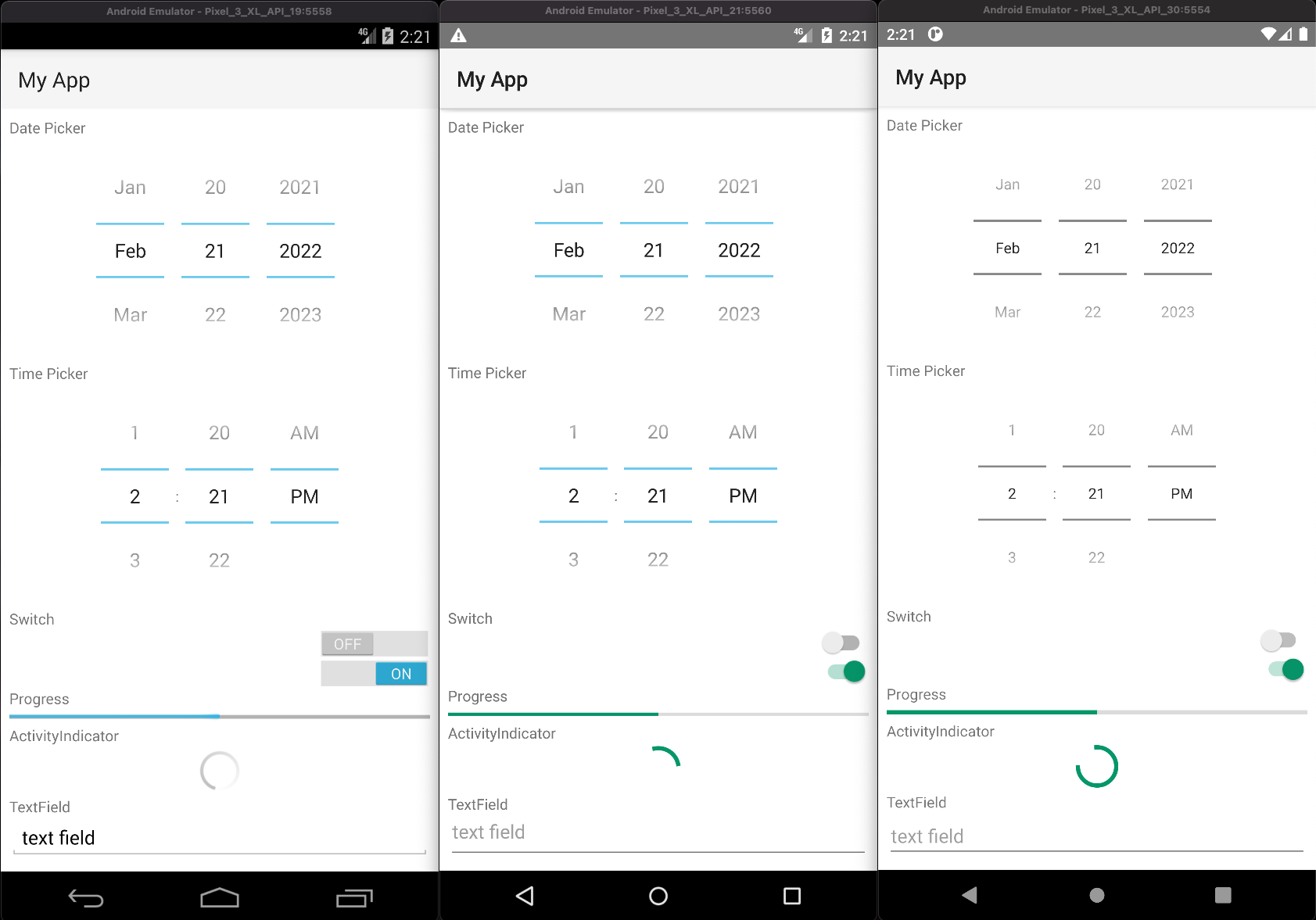
Showing the app under the status bar
The status bar can be made translucent and let the app flow underneath by uncommenting android:windowTranslucentStatus in AppThemeBase21 and android:paddingTop in NativeScriptToolBarStyle in App_Resources/Android/src/main/res/values-v21/styles.xml:
Note
We have added <color name="ns_primary">#65ADF1</color> to App_Resources/Android/src/main/res/values-v21/colors.xml to color the ActionBar.
<!-- Application theme -->
<style name="AppThemeBase21" parent="AppThemeBase">
  <!-- Uncomment this to make the app show underneath the status bar -->
  <item name="android:windowTranslucentStatus">true</item>
<!-- ... -->
</style>

<!-- ... -->

<style name="NativeScriptToolbarStyle" parent="NativeScriptToolbarStyleBase">
  <item name="android:elevation">4dp</item>

  <!-- Add padding to the ActionBar - useful when android:windowTranslucentStatus is set to true -->
  <item name="android:paddingTop">24dp</item>
</style>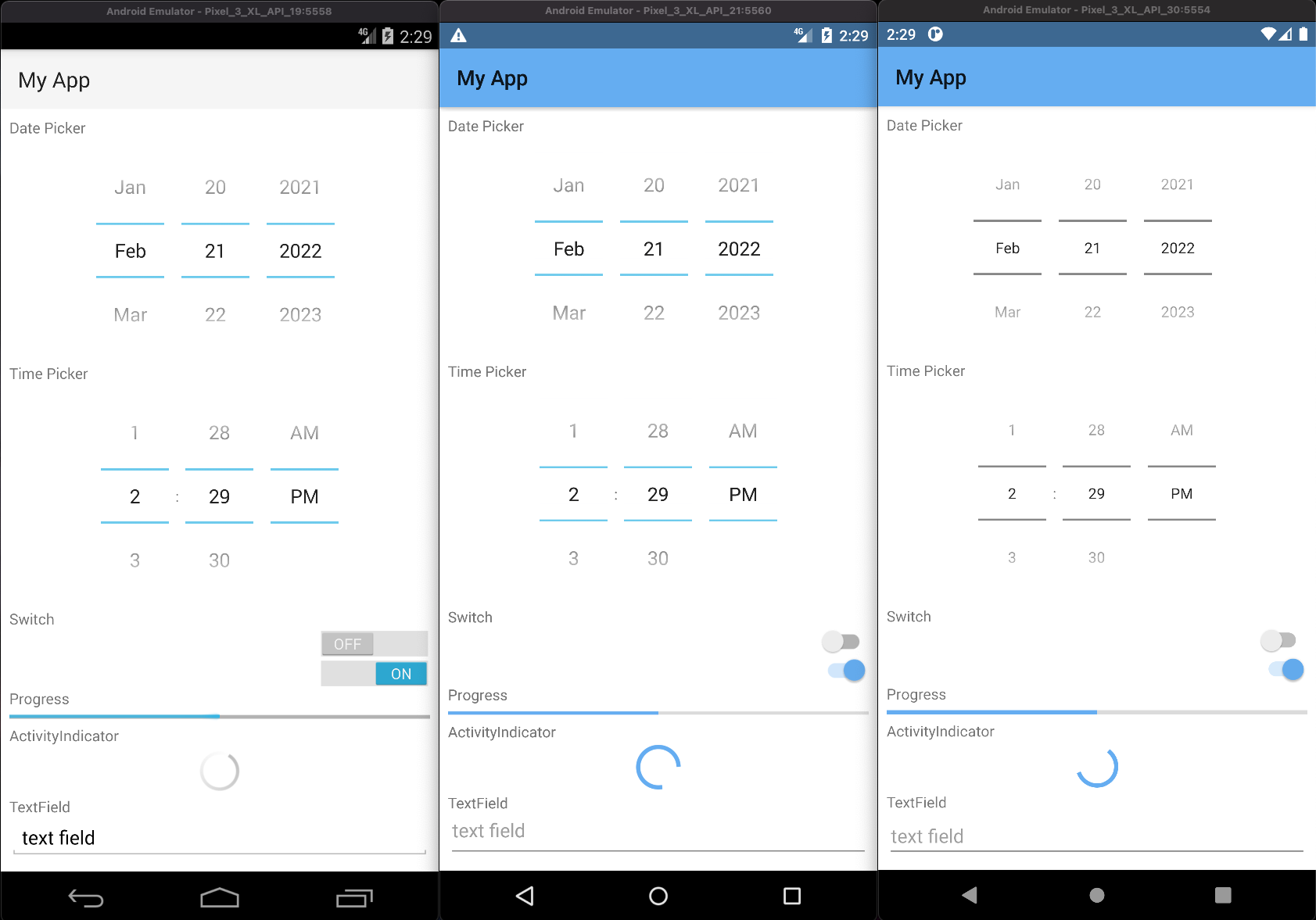
Changing the DatePicker to calendar mode
To change the mode of the DatePicker from the default spinner style, change android:datePickerMode in App_Resources/Android/src/main/res/values-v21/styles.xml:
<!-- Default style for DatePicker - in spinner mode -->
<style name="SpinnerDatePicker" parent="android:Widget.Material.Light.DatePicker">
  <!-- set the default mode for the date picker (supported values: spinner, calendar)  -->
  <item name="android:datePickerMode">calendar</item>
</style>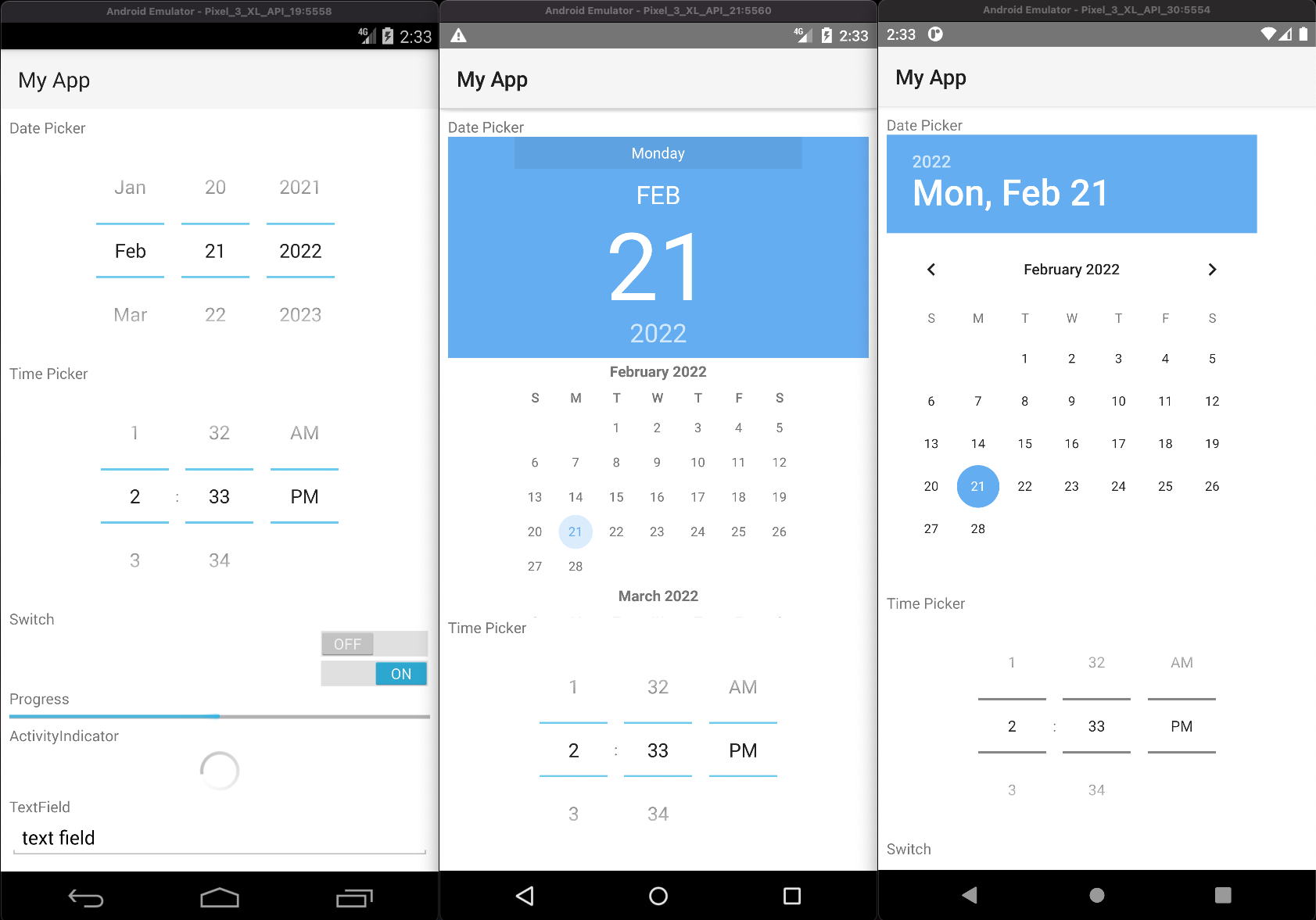
Changing the TimePicker to clock mode
To change the mode of the TimePicker from the default spinner style, change android:datePickerMode in App_Resources/Android/src/main/res/values-v21/styles.xml:
<!-- Default style for TimePicker - in spinner mode -->
<style name="SpinnerTimePicker" parent="android:Widget.Material.Light.TimePicker">
  <!-- set the default mode for the time picker (supported values: spinner, clock)  -->
  <item name="android:timePickerMode">clock</item>
</style>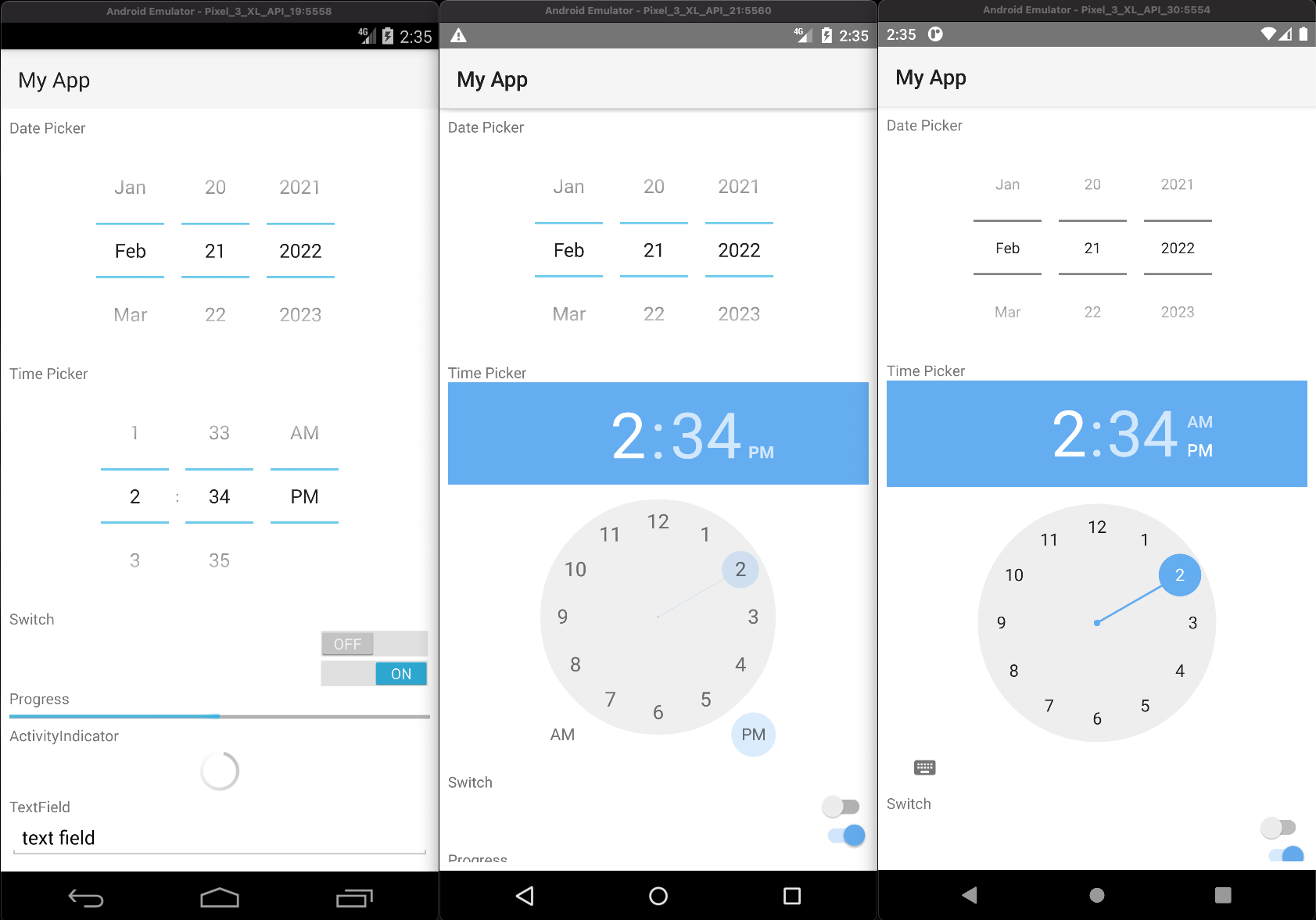
Enabling force Dark Mode
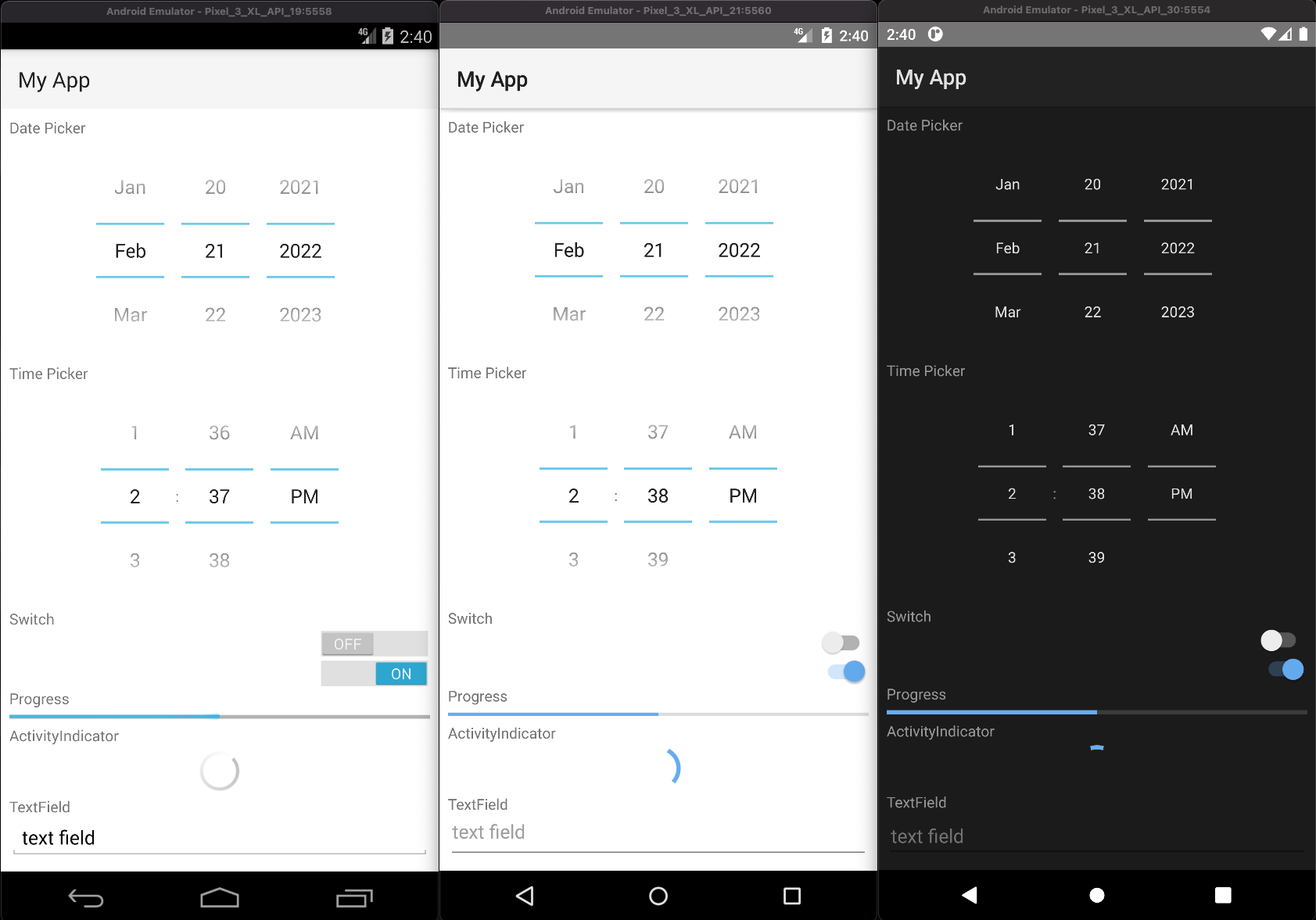
On API29+ apps can opt-in to a default Dark Mode when the system is set to use Dark Mode. This is turned off by default as it can lead to visual issues, since the automatic conversion may not display correctly in all cases.
To opt-in, change the android:forceDarkAllowed value to true in App_Resources/Android/src/main/res/values-v29/styles.xml:
<!--
  Disable forced dark mode on newer devices.
  Enabling this will make your app appear in dark-mode,
  but the way the app is converted may lead to visual issues
-->
<item name="android:forceDarkAllowed">true</item>
Note
If you enable android:forceDarkAllowed make sure you check if all the screens of you app look correct in the forced Dark Mode.
iOS specific resources
Most things on iOS are controlled directly through the app's template code however you can change the status bar style between dark (black text) or light (white text) by adding the following to your app's App_Resources/iOS/ Info.plist:
- Use white text on dark background:
<key>UIStatusBarStyle</key>
<string>UIStatusBarStyleLightContent</string>
<key>UIViewControllerBasedStatusBarAppearance</key>
<false/>- Use black text on light background:
<key>UIStatusBarStyle</key>
<string>UIStatusBarStyleDarkContent</string>
<key>UIViewControllerBasedStatusBarAppearance</key>
<false/>
iOS app display name
<key>CFBundleDisplayName</key>
<string>Your app name</string>
<key>CFBundleName</key>
<string>Your app name</string>
Adding custom entitlements
You can add custom entitlements to the App_Resources/iOS/app.entitlements
For a list of available entitlements refer to Apple's Entitlements documentation
Adding ObjectiveC/Swift Code to an application
See Adding ObjectiveC/Swift Code to an application.
Linux specific resources
Experimental
The Linux platform is experimental. See Developing for Linux.
App_Resources/
├─ Linux/
│  ├─ icon.png             # app icon, 512x512 (or icon.svg)
│  ├─ app.desktop          # desktop entry template
│  ├─ app.metainfo.xml     # AppStream metadata template
│  ├─ images/              # images used with res:// URLs
│  ├─ native-api-usage.json # optional, metadata filtering rules
│  └─ src/, include/, lib/, native.json, CMakeLists.txt  # optional, native code
└─ ... more
If the project doesn't have an App_Resources/Linux folder, the CLI adds the default one the first time you prepare the app for Linux.
The following tokens are replaced in app.desktop and app.metainfo.xml:
| Token | Value |
|---|---|
__APP_ID__ | the app id (id or linux.id) |
__APP_NAME__ | the project name |
__APP_VERSION__ | the version from package.json |
__APP_DATE__ | the build date |
__EXEC__ | the path of the app executable, set when the app is installed |
App icon
icon.png is the app's icon, used for its windows and in the desktop's app launcher. Use a 512×512 PNG, or an icon.svg, which is used instead when present. The icon is installed as <app id> in the hicolor icon theme.
Desktop entry (app.desktop)
The desktop entry makes the app show up in the desktop's app launcher, with its name and icon. It is written as <app id>.desktop:
[Desktop Entry]
Type=Application
Name=__APP_NAME__
Exec=__EXEC__
Icon=__APP_ID__
Categories=Utility;
Terminal=false
StartupWMClass=__APP_ID__
Change Name to your app's display name, and set the categories the app belongs to. Keep Exec, Icon and StartupWMClass as they are, they are needed to launch the app and to match its windows to the desktop entry.
AppStream metadata (app.metainfo.xml)
AppStream metadata describes the app for software centers (such as GNOME Software, KDE Discover and Flathub). It is written as <app id>.metainfo.xml:
<?xml version="1.0" encoding="UTF-8"?>
<component type="desktop-application">
  <id>__APP_ID__</id>
  <name>__APP_NAME__</name>
  <summary>A NativeScript application</summary>
  <description>
    <p>__APP_NAME__ is a desktop application built with NativeScript and GTK 4.</p>
  </description>
  <metadata_license>CC0-1.0</metadata_license>
  <launchable type="desktop-id">__APP_ID__.desktop</launchable>
  <content_rating type="oars-1.1" />
  <releases>
    <release version="__APP_VERSION__" date="__APP_DATE__" />
  </releases>
</component>
Images
Images in App_Resources/Linux/images/ can be used from your app with res:// URLs, for example res://logo loads images/logo.png (or logo.svg or logo.jpg).
Adding native code to a Linux application
- Android specific resources
- Android app display name
- Adding native code to an application
- Setting the default color of the ActionBar
- Setting the default color of the status bar
- Setting the accent color
- Showing the app under the status bar
- Changing the DatePicker to calendar mode
- Changing the TimePicker to clock mode
- Enabling force Dark Mode
- iOS specific resources
- Linux specific resources
Contributors

